Move to Register Book
Bring your register over from another checkbook app. Every step on this page was done on a real iPhone on November 11, 2026, except where it says it is not tested yet.
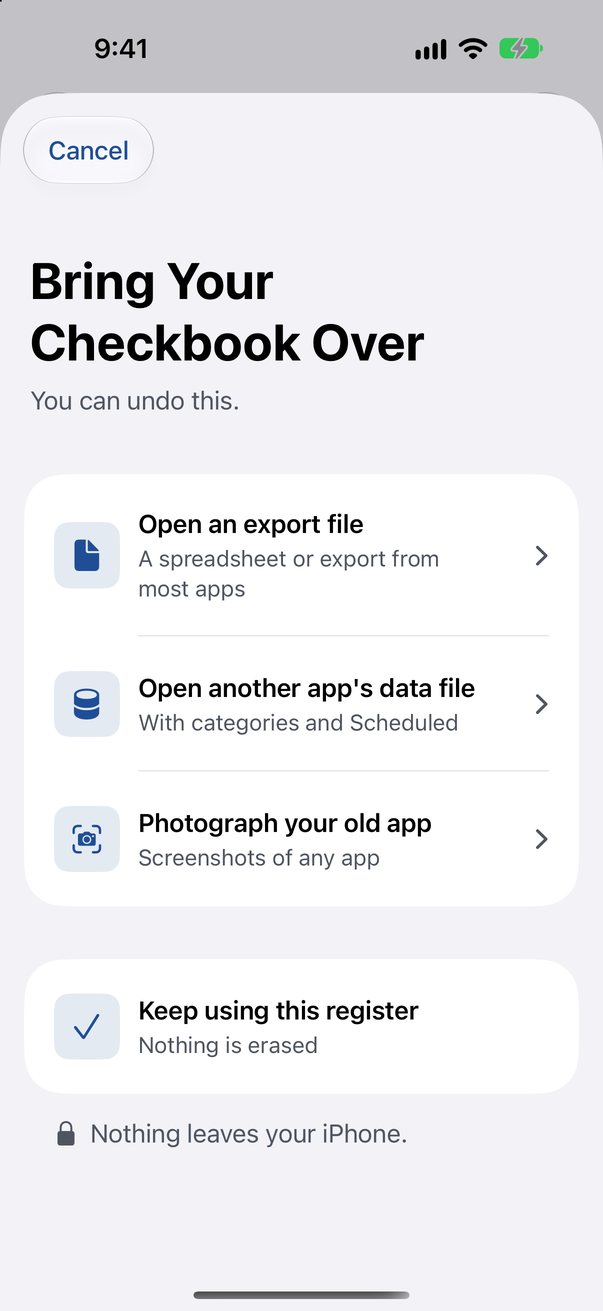
In Register Book
The way in is the same for every app. Is your app not on this page? Take screenshots of its register: that way works for any app.
- In Register Book, open an account.
- Tap “…”.
- Tap “Bring Your Checkbook Over”.
From Debit & Credit
Export a fileTested on an iPhone, November 11, 2026
- In Debit & Credit, open Settings.
- Tap “Import / Export”.
- Tap “Export to a CSV File”.
- Set “Time period” to “All Time”.It starts on “This Month”. If you leave it, older entries are not in the file.
- Tap “Export”.
- Tap “Save to Files”.
- In Register Book, open “Bring Your Checkbook Over” and choose the file.
- Choose the account to bring in.The file holds all your accounts. Register Book says so and asks which one to bring in. Do it once for each account.
What to expect
Every entry, its date, amount, category, note and cleared state come over.
“Check 2042” typed as a description becomes check number 2042.
Debit & Credit shows a balance that leaves out pending entries. In Register Book that figure is “Cleared”, and “Balance” counts everything.
From Checkbook
The app with the yellow CHECK icon.
Photograph your registerTested on an iPhone, November 11, 2026
This way needs nothing from the other app but its screen.
- Open the account in Checkbook.
- Take a screenshot.
- Scroll one screen and take the next screenshot. Go on to the end of the register.Let each picture repeat a row or two of the one before.
- In Register Book, open “Bring Your Checkbook Over”.
- Tap “Photograph your old app” and pick the screenshots.
- Check the rows on the review screen.
- Bring them in.
What to expect
Name, amount, date and check number are read.
Rows repeated on two pictures are counted once.
Category, memo and cleared state are not on that app’s rows, so they do not come over.
Export a fileNot tested yet
Its “Export Data” may require a paid subscription in that app. A file from it is not tested yet.
From Accounts 3
Also for Accounts 3 Lite.
Photograph your registerTested on an iPhone, November 11, 2026
The same steps as for Checkbook.
- Open the account in Accounts 3.
- Take a screenshot.
- Scroll one screen and take the next screenshot. Go on to the end of the register.Let each picture repeat a row or two of the one before.
- In Register Book, open “Bring Your Checkbook Over”.
- Tap “Photograph your old app” and pick the screenshots.
- Check the rows on the review screen.
- Bring them in.
What to expect
Name, amount, date, check number and memo are read.
Export by emailNot tested yet
Its export goes out by email only. This way is not tested yet with a real file.
- In Accounts 3, tap the card button at the bottom right.
- Tap “Export Transactions”.
- Choose CSV or QIF.
- Type your own email address.
- Tap “Send”.
- Open the email on the iPhone.
- Touch and hold the attached file.
- Choose Register Book.